
MOV to MP3 converter online: reliable extraction workflow for cleaner audio
MOV to MP3 converter online workflows are most reliable when you lock bitrate, naming, and download checks before converting any file. The biggest quality and safety failures come from inconsistent presets and unsafe ad redirects, not from the MOV source itself.
MOV to MP3 converter online tools help you extract portable audio from QuickTime video files when your target system prefers MP3 for playback, upload, or archive compatibility. If your team publishes lessons, interviews, webinars, or social clips, a repeatable MOV file to MP3 process saves hours of rework and prevents inconsistent output quality. This guide focuses on practical operations: what to check before conversion, which bitrate policy to use, how to run batch jobs safely, and when desktop workflows are more stable than browser tools.

How do I convert MOV to MP3 online with consistent results?
Most inconsistent output happens because users treat conversion as a one-click task instead of a lightweight quality workflow. When teams skip source checks and bitrate planning, converted files end up with uneven loudness, inconsistent size, and avoidable artifacts. A compact, repeatable process solves this.
Eight-step baseline workflow
- Inspect the MOV source for clipping, channel imbalance, and long silence.
- Choose a converter that shows codec, bitrate, and output controls before conversion.
- Select MP3 and lock one bitrate policy for the full batch.
- Use clear naming rules that include project, date, and sequence number.
- Convert in smaller batches to avoid browser memory crashes.
- Download only direct
.mp3output files, never installers or extensions. - Run a three-point listen check: opening, midpoint, final 10 seconds.
- Archive source MOV files separately from final MP3 deliverables.
Quick trust checks before upload
| Stage | Healthy Signal | Risk Signal |
|---|---|---|
| Upload | Tool reads filename and duration accurately | Missing metadata or 0:00 duration |
| Settings | Manual bitrate selection is available | No quality controls beyond output format |
| Download | Direct MP3 file download | Forced ads, redirect loops, or app installs |
| Validation | Clean playback across desktop and mobile | Pops, clipping, or truncated ending |
If your source is a web-ready format like WEBM instead of QuickTime MOV, review the dedicated WEBM to MP3 converter online guide because codec assumptions and error patterns differ.
Why does audio inside MOV affect conversion quality?
MOV is a container, not a single audio format. One MOV file may carry AAC, another may contain PCM, and another may include compressed legacy tracks from older export tools. Because source audio can vary, your conversion policy should be driven by source characteristics, not by the file extension alone.
Common source patterns in MOV workflows
- AAC in MOV: common in mobile and camera exports; already compressed.
- PCM in MOV: larger source with more headroom; conversion tradeoffs are easier to control.
- Mixed project exports: timeline renders where loudness and channels vary clip to clip.
When source audio is already lossy, converting again to MP3 can stack compression artifacts. That is why one-pass extraction and stable bitrate policy matter more than aggressively high settings. For format background, the Library of Congress format notes on QuickTime/MOV and MP3 are useful references when you need archival context.
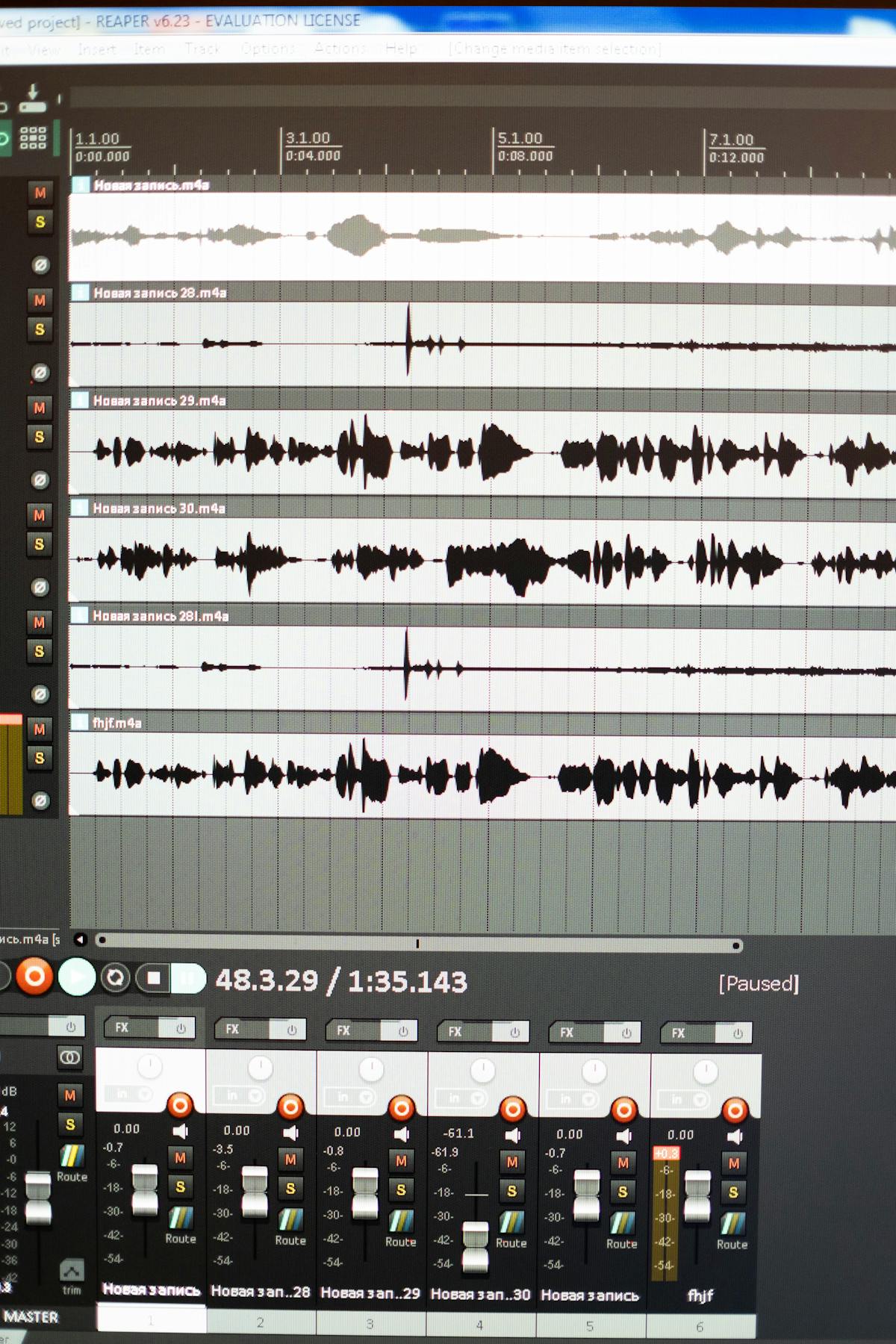
What bitrate should I use for MOV to MP3 converter online workflows?
The best bitrate depends on final use, not on a generic "highest quality" claim. In many real-world publishing pipelines, 192 kbps is the best balance between quality and file size. Going straight to 320 kbps can inflate storage and transfer costs without improving audible detail when the source is already compressed.
Recommended bitrate defaults
- 128 kbps: voice-first content, notes, lectures, and internal review copies.
- 192 kbps: mixed speech and music; default for most delivery workflows.
- 320 kbps: music-forward output where larger files are acceptable.
Estimated MP3 size for a 15-minute MOV source
| Bitrate | Approximate File Size | Best Use Case |
|---|---|---|
| 128 kbps | ~14 MB | Speech-heavy meetings and transcripts |
| 192 kbps | ~21 MB | General publishing and cross-device playback |
| 320 kbps | ~35 MB | Music-first listening and premium archives |
For repeated work, build one documented profile and do not allow per-editor bitrate changes unless the project requires them. Policy consistency reduces QA overhead and makes troubleshooting faster when users report playback issues.
Can I batch convert MOV files to MP3 without breaking quality?
Yes, but batch reliability depends on queue discipline. Browser converters can handle medium queues if you control batch size, naming, and post-conversion checks. If you process dozens of files daily, desktop or command-line jobs usually offer better error handling and auditability.
Batch conversion checklist
- Group files by content type: speech, mixed, music-heavy.
- Apply one bitrate profile per group.
- Use sequence-based names such as
project-topic-001.mp3. - Track conversion status in a lightweight log sheet.
- Validate a sample from each batch, not just the first file.
Operational thresholds that reduce failures
| Control | Recommended Baseline | Reason |
|---|---|---|
| Batch size | 10 to 20 files per run | Reduces browser memory and timeout issues |
| Retry policy | One retry with fresh session | Prevents duplicated partial exports |
| QA sample rate | At least 20% of outputs | Catches silent corruption early |
| Archive rule | Keep original MOV for 30 days | Supports recovery and legal review |
If you also manage local audio formats in the same pipeline, compare policy details in our WAV to MP3 converter online, FLAC to MP3 converter online, and M4A to MP3 converter online guides.

Online vs desktop MOV to MP3: when should you switch?
Online converters are useful for one-off jobs and quick turnarounds. Desktop workflows become stronger when you need repeatability, predictable logs, and no upload dependency. Choosing the right mode can remove recurring bottlenecks.
Use online conversion when
- You have small batches and need immediate output.
- You are working on shared systems without install rights.
- You only need basic bitrate controls and quick validation.
Use desktop or command line when
- You convert files every day and need stable batch automation.
- You need detailed logs for QA or compliance review.
- You process large files that exceed web tool limits.
For teams ready to move from browser-based conversion to repeatable automation, the official FFmpeg documentation is the most practical primary reference for scripted workflows and parameter controls.

How do I avoid unsafe tools and legal mistakes during MOV to MP3 conversion?
MOV to MP3 converter online pages often mix valid download buttons with ad placements that mimic download actions. The safest approach is to predefine allowed tool behavior and reject anything that adds extensions, push notifications, or executable downloads. Legal checks should be part of the same workflow, not an afterthought.
Safety rules worth documenting
- Reject any tool that requires browser extensions for basic conversion.
- Reject any output flow that downloads
.exe,.dmg, or unrelated installers. - Require direct MP3 output links with predictable file naming.
- Run endpoint antivirus checks on batches from unknown sources.
Legal policy baseline
- Convert content you own, created, or are explicitly licensed to process.
- Do not redistribute copyrighted audio without permission.
- Document source rights for client or commercial projects.
Copyright boundaries vary by context, but the U.S. Copyright Office FAQ is a practical starting point when teams need a plain-language rights refresher: copyright.gov fair use FAQ.
What should a team MOV to MP3 operations playbook include?
A playbook turns random conversion decisions into a stable production process. It should be short enough for daily use and detailed enough for new contributors to follow without guesswork. Most teams only need one page plus a conversion checklist to eliminate repeat errors.
Minimum fields to include
- Accepted source profiles: camera exports, screen recordings, edited timelines.
- Output policy: approved bitrate presets and fallback profile.
- Naming pattern: project, clip ID, revision, and date.
- QA gate: listen checks plus metadata verification.
- Escalation path: who reviews failed conversions and legal exceptions.
Weekly metrics for quality stability
| Metric | Target | Response If Missed |
|---|---|---|
| Failed conversions | Below 2% | Reduce queue size and retest source profile |
| Policy bitrate violations | 0 files | Lock presets and restrict manual overrides |
| User playback complaints | Downward trend weekly | Expand cross-device QA test set |
| Reconversion workload | Below 5% of total output | Audit source inspection and naming discipline |
Teams that document these basics usually ship cleaner MP3 output with fewer reruns. If your workflow also includes extracting audio from video platforms, combine this page with our YouTube video to MP3 converter guide and YouTube video to MP4 converter guide so policies stay consistent across source types.
What are the most common MOV to MP3 converter online failures and fixes?
Even strong workflows can fail when source files are inconsistent or converter infrastructure changes without notice. Fast troubleshooting depends on mapping visible symptoms to likely causes instead of repeatedly testing random tools. A short failure matrix helps teams recover in minutes instead of rerunning full batches.
Failure patterns you can diagnose quickly
| Symptom | Likely Cause | Practical Fix |
|---|---|---|
| Output MP3 is silent | Wrong source track selected or broken channel mapping | Test source playback, then re-export with explicit stereo track selection |
| Conversion stalls at 99% | Browser memory pressure or unstable upload session | Reduce batch size and retry in a clean browser session |
| MP3 starts with clipping | Hot source levels before encoding | Normalize or reduce input gain before conversion |
| File size is much larger than expected | Unnecessary 320 kbps export for speech material | Move speech content to a 128 or 192 kbps policy |
| Random metadata loss | Tool strips tags during conversion | Apply metadata in a post-conversion tagging step |
Escalation path for repeated failures
- Reproduce with a known-good MOV sample and your standard bitrate profile.
- Compare output against a second trusted tool to isolate tool-specific behavior.
- If failure persists, switch that project to desktop conversion for deterministic control.
- Log incident details so the same pattern can be resolved faster next time.

This escalation flow prevents panic-driven tool switching and keeps output quality predictable during deadlines. In production environments, repeatability is more valuable than theoretical peak quality because consistency reduces support load, reruns, and delivery delays.